
Easy Chip · Installation and support
Help Center
From QR code to your first connection: follow your phone guide and find help using your travel eSIM.
Before installing
- Confirm eSIM support and carrier unlock. Have Wi-Fi and enough battery to download the profile.
- Open your order email or My Account to access the QR and your plan instructions. Do not use a QR from another order.
- The rule depends on the plan: validity may begin at installation or on the first connection to a supported network. Check the purchased plan policy in your order and instructions before installing. If unclear, ask support. Use Wi-Fi to download the profile and save the instructions for your trip.
Choose your phone to install
Open the matching guide. The text contains the same steps as the images.
iPhone
- Connect your iPhone to Wi-Fi and open Settings → Cellular (or Mobile Data).
- Tap Add eSIM → Use QR Code. Scan your Easy Chip order QR displayed on another screen and follow the iPhone prompts.
- Name the line Easy Chip. Do not choose to transfer your current SIM. Wait for the profile to install; connecting at your destination is a separate step.
Is the QR on the same phone? See the alternatives below.
Install without another screen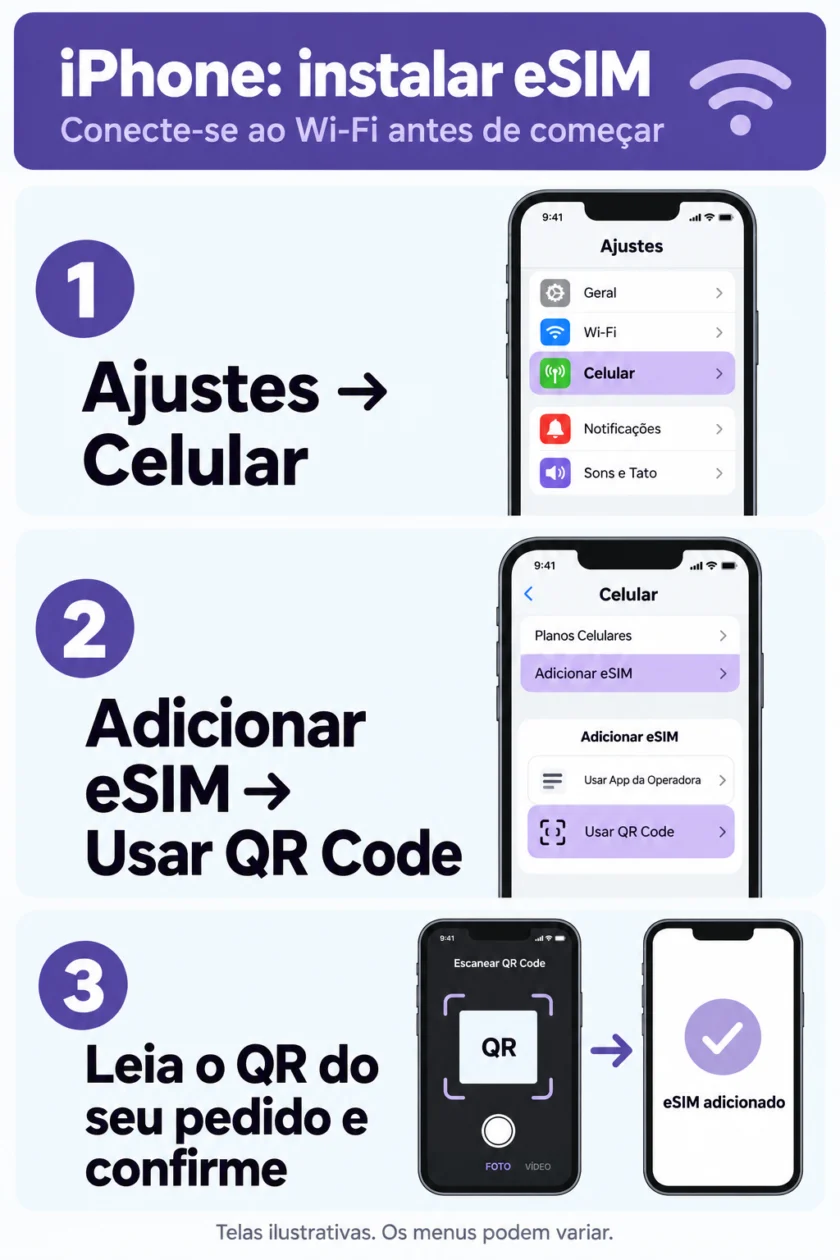
Samsung Galaxy
- Connect your Samsung to Wi-Fi. Open Settings → Connections → SIM manager.
- Tap Add eSIM and choose the QR scanning option. Scan your Easy Chip order QR on another screen.
- Confirm the profile download and wait. Label the line Easy Chip. Do not transfer or erase your current SIM.
Is the QR on the same phone? See the alternatives below.
Install without another screen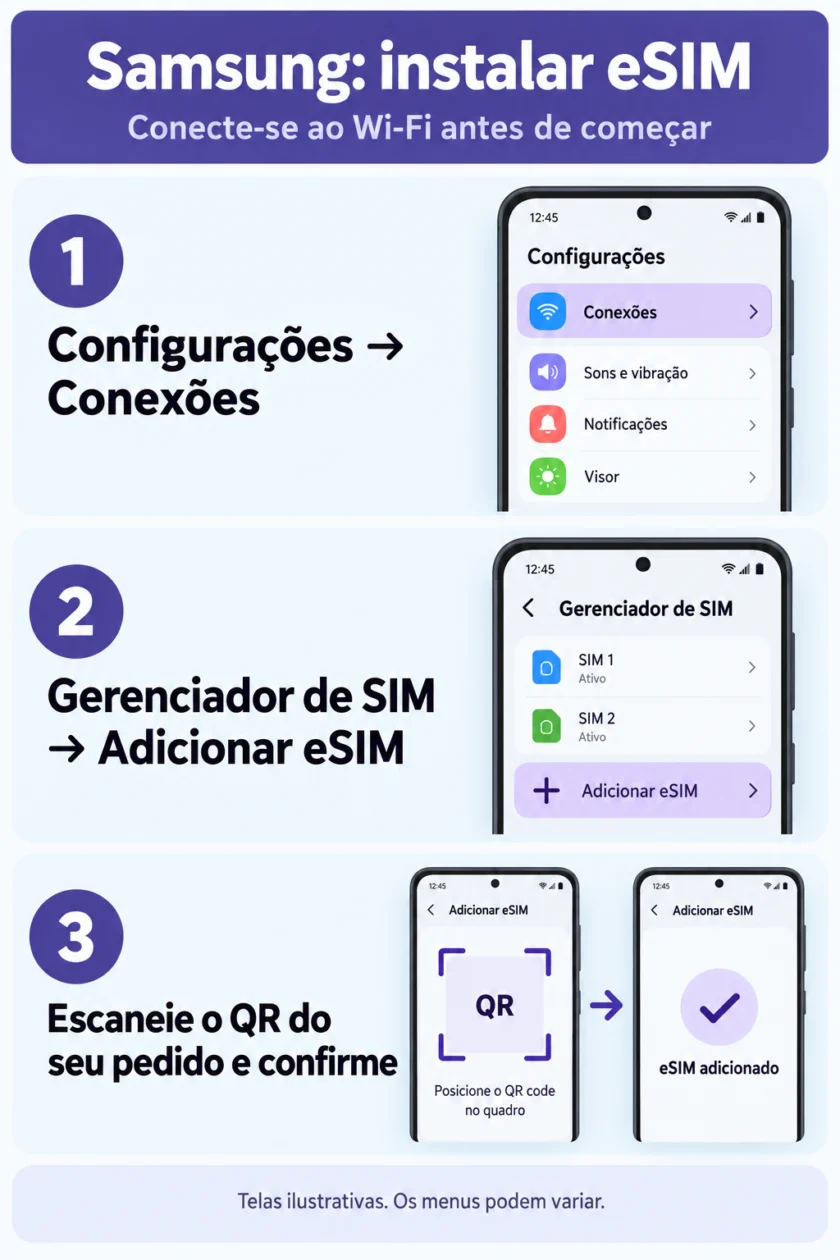
Google Pixel
- Connect your Pixel to Wi-Fi. Open Settings → Network & internet → SIMs.
- Tap Add SIM → Set up an eSIM and follow the prompts to scan your Easy Chip order QR.
- Confirm the download and wait for the profile to install. Name the line Easy Chip so you can find it later.
Is the QR on the same phone? See the alternatives below.
Install without another screen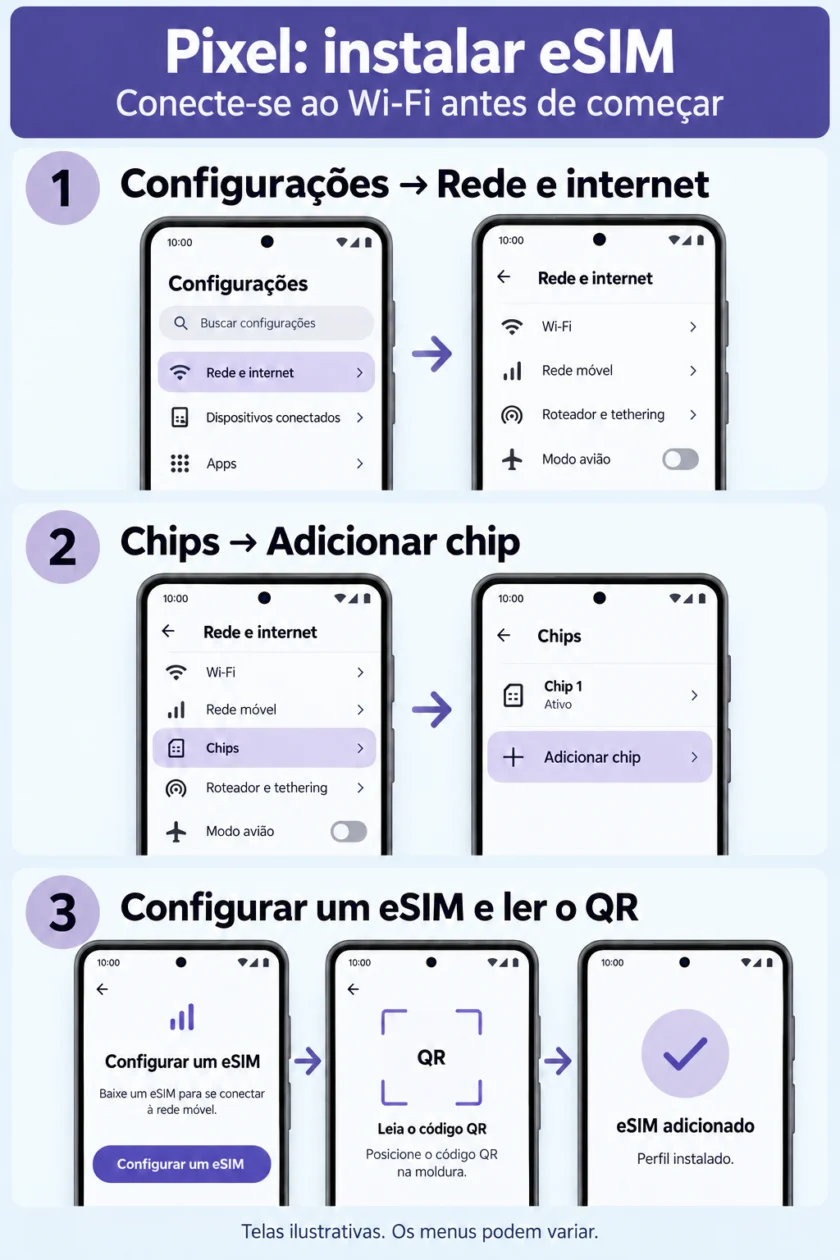
Another Android brand
Confirm compatibility with the manufacturer. Find Add eSIM in SIM or mobile network settings and follow your phone prompts. Do not use the option to transfer your current SIM; Samsung and Pixel paths do not apply to every Android phone.
The QR is on the same phone. How can I install it?
If your order provides an iPhone installation link, use it. On iOS 17.4 or later, a QR in email or a browser may support press-and-hold → Add eSIM. You can also display the QR on another device. For manual installation, use the SM-DP+ and activation-code fields provided in your order; if you only have a full LPA code and the phone needs separate fields, contact support.
Do not delete the profile. First check whether Easy Chip is already listed in SIM settings; it may be installed. Some eSIMs can only be installed once and cannot be reinstalled or transferred. If the profile is missing or an error occurs, keep the error message and contact support before deleting or trying another phone.
At your destination: connect to the internet
If Android has a single roaming setting for all lines and you cannot separate them, disable your home line while using the travel eSIM. Even with data roaming off, home-line calls and SMS may incur charges; check with your carrier.
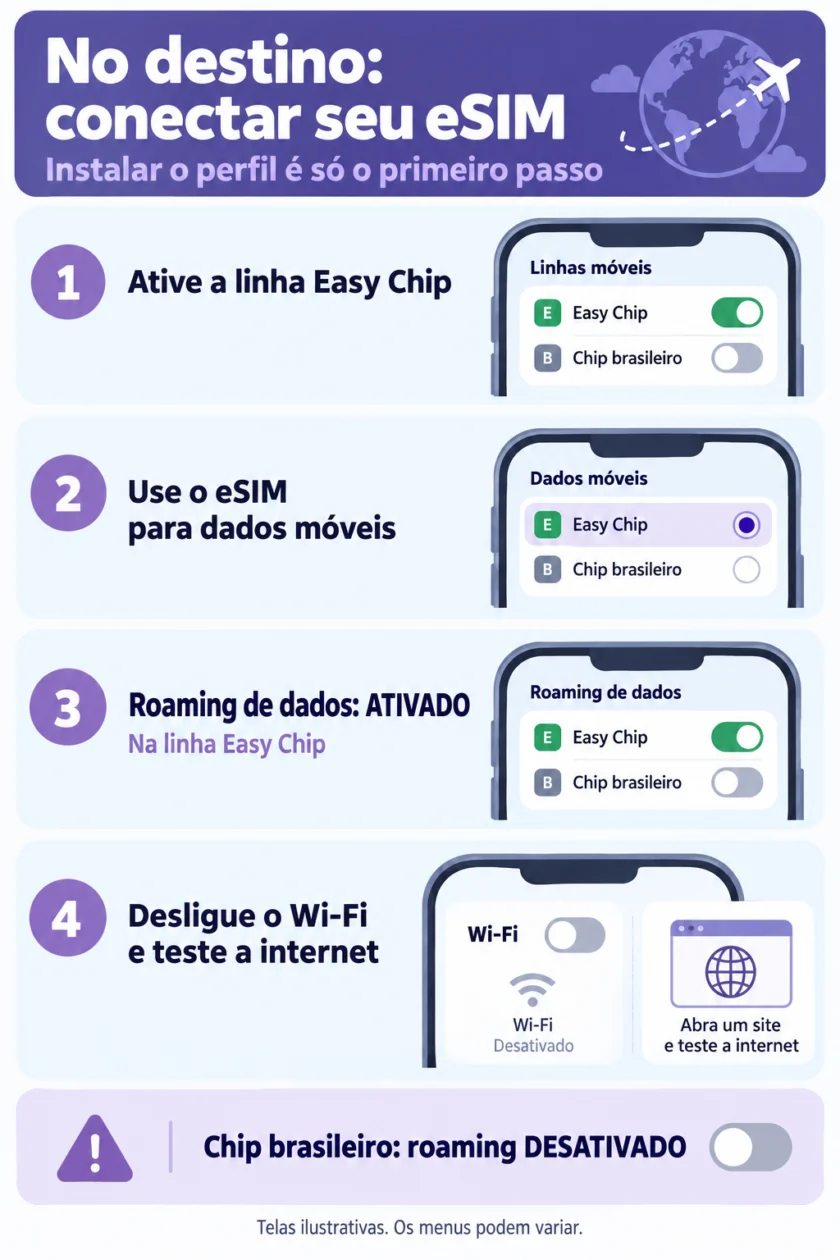
- Turn on the Easy Chip line in your phone SIM settings. Confirm that your current country is covered by the plan you purchased.
- Select Easy Chip for Mobile Data / Cellular Data. Disable automatic data switching so your phone does not use your home SIM for data.
- Keep data roaming ON for the Easy Chip eSIM while using it at your destination. On iPhone: Settings → Cellular → Easy Chip → Data Roaming. On Android, select Easy Chip in mobile network settings and enable Roaming.
- Check your plan instructions for the APN. If manual configuration is required, copy the exact APN provided and save it; do not use a generic APN. Leave network selection automatic unless the plan gives different instructions.
- Turn off Wi-Fi, wait for network registration and open a website to test. If needed, turn airplane mode on and off, then try again.
Questions and troubleshooting
I have not received my eSIM. Where is the QR?
After payment confirmation and eSIM issuance, check your order email, including spam, and My Account / my eSIMs. Pending payment does not confirm issuance. If payment was approved but no QR is available, contact support with your order number.
The QR is on the same phone. How can I install it?
If your order provides an iPhone installation link, use it. On iOS 17.4 or later, a QR in email or a browser may support press-and-hold → Add eSIM. You can also display the QR on another device. For manual installation, use the SM-DP+ and activation-code fields provided in your order; if you only have a full LPA code and the phone needs separate fields, contact support.
The QR is invalid or already used. Should I delete the eSIM?
Do not delete the profile. First check whether Easy Chip is already listed in SIM settings; it may be installed. Some eSIMs can only be installed once and cannot be reinstalled or transferred. If the profile is missing or an error occurs, keep the error message and contact support before deleting or trying another phone.
I installed it but have no signal or internet.
Check country coverage, validity and remaining data. Enable Easy Chip, select it for data and keep its roaming ON. Check the plan-specific APN and automatic network selection. Turn Wi-Fi off to test. Try toggling airplane mode or restarting the phone without deleting the eSIM. If it still fails, send your phone model, country and error message to support.
When does validity start? Can I install before travelling?
The rule depends on the plan: validity may begin at installation or on the first connection to a supported network. Check the purchased plan policy in your order and instructions before installing. If unclear, ask support. Use Wi-Fi to download the profile and save the instructions for your trip.
Internet is slow or my data ran out.
Check remaining data, validity, signal and any plan fair-use or speed limits. Network service varies by location and congestion; 5G is not guaranteed. Avoid large automatic downloads and updates. If data is exhausted, check whether your plan supports a top-up or choose a new plan.
Can I keep WhatsApp and receive calls?
You can keep your existing WhatsApp number and use eSIM internet without registering a new number. Many plans are data-only; regular calls and SMS are included only when the plan description says so. Using your home line for calls or SMS may incur carrier charges.
Can I share internet or use it on another phone?
Hotspot support depends on the plan and phone; check the description before buying. Install on the phone you will use. Do not assume the QR can be reused or the eSIM transferred: ask support before deleting the profile or changing phones.
I cannot find Add eSIM. Is my phone compatible?
Check your exact model, manufacturing region and system version with the manufacturer. Phones with the same name can have versions without eSIM. The phone must also be carrier-unlocked. Do not buy or try to transfer your current SIM if compatibility is not confirmed.
Need help with your order?
Have your order number, phone model, current country and error message ready. Do not post your QR or activation code on social media.
Contact support on WhatsAppsuporte@easychip.com.brSupport hours: Monday–Friday, 9 a.m.–6 p.m., Brasília time. Guides are available at any time.
Manufacturer instructions
Menu names vary by phone, language and system version. See the official instructions as well:
Apple: eSIMSamsung: eSIMGoogle Pixel: eSIM